
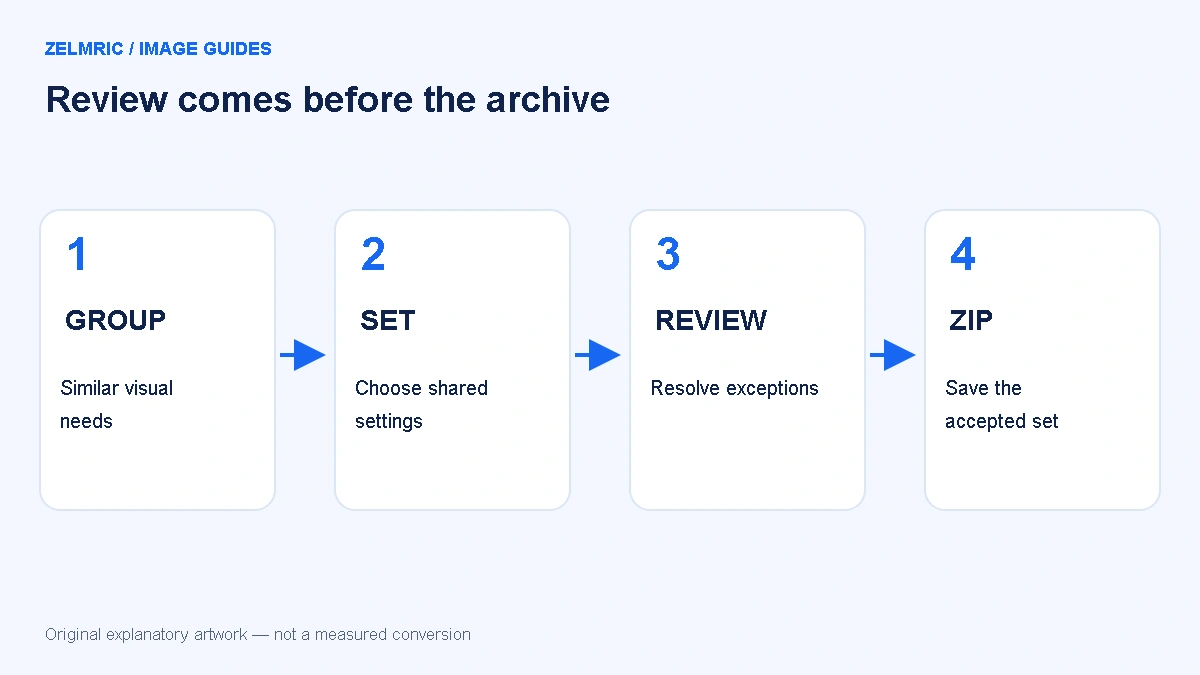
An archive can download successfully while one source image is missing, a logo has a poor edge, or an output is larger than the file it would replace. The presence of a ZIP proves that files were packaged; it does not prove that the collection is ready for a website or a client handoff.
When learning how to batch convert images to WebP, start before the Convert button and continue the checks after extraction. Use the local WebP Converter for processing, but keep responsibility for the source list, visual review and destination requirements in the workflow around it.
Prepare a source list you can reconcile later
Put the intended inputs in a dedicated working folder and retain an untouched copy. Decide which items belong in the delivery set. Duplicate names, old revisions and alternative crops are easier to resolve before conversion than after a directory contains several similarly named outputs.
Write a simple checklist with the source filename and the intended destination. You do not need a new application or an elaborate database. The goal is to know whether each expected item has a usable result and where it belongs. Do not assume that a converter’s ZIP will recreate your original folder hierarchy.
Split by visual needs as well as by file count
Photographs, screenshots and transparent interface graphics can require different review standards. A shared quality setting is convenient, but it does not make their requirements identical. Group similar assets when possible so you are not choosing one compromise solely to keep everything in the same queue.
Zelmric accepts up to 20 files per batch, with 10 MiB per file and 60 MiB total input. SVG files have a separate 1 MiB limit. Decoded dimensions are capped at 16 megapixels and 8,192 pixels per side; converted output is capped at 60 MiB in total. A batch below the count limit can still exceed another limit.
These controls reduce memory pressure, not all risk. Decoded images can consume much more memory than their compressed input, and phones have different resources from desktop computers. Split a demanding set into smaller batches rather than repeatedly trying the same oversized workload.
Choose settings with a representative trial
Keep dimensions unchanged while you first assess quality, unless reducing dimensions is already a requirement of the destination. Start with a demanding member of the group: fine text, a detailed texture or a soft transparent shadow. The quality checklist provides a way to judge that trial.
Then select a width or height only if a proportional downscale is appropriate. Zelmric does not upscale. Changing both quality and dimensions without a reference makes failures harder to diagnose. Once the trial is acceptable, use those settings for the group and still inspect exceptions individually.
Read the queue as a set of independent outcomes
Processing runs one file at a time. A successful item has a thumbnail, source name, original and WebP sizes, dimensions, a percentage change and an individual download. Read both the success status and the size label: a valid file marked larger may need a different delivery decision.
Use the larger-output diagnostic for those exceptions. For PNG graphics, inspect the transparent edges on suitable backgrounds. The queue thumbnail is useful for identification, but it is too small to settle every visual question.
Cancel leaves already completed results available and stops remaining work. Retry targets an individual failed or cancelled item. Converting the list again uses the current settings and replaces working results, so save any trial you want to keep before repeating the batch.
Treat naming as a mapping task
Downloaded filenames use a cleaned source name and an index, which distinguishes duplicate names within the list. A source name with punctuation or non-ASCII characters may not look identical after cleaning. The output extension is WebP, regardless of whether the source was a PNG or JPEG.
Do not infer global uniqueness from the suffix. Two separate batches can produce names that collide when extracted into one folder. Keep each ZIP and extraction in a clearly labelled local folder, compare the source list with the results, and rename delivery files deliberately if the destination needs a particular convention.
Extract and inspect before replacing anything
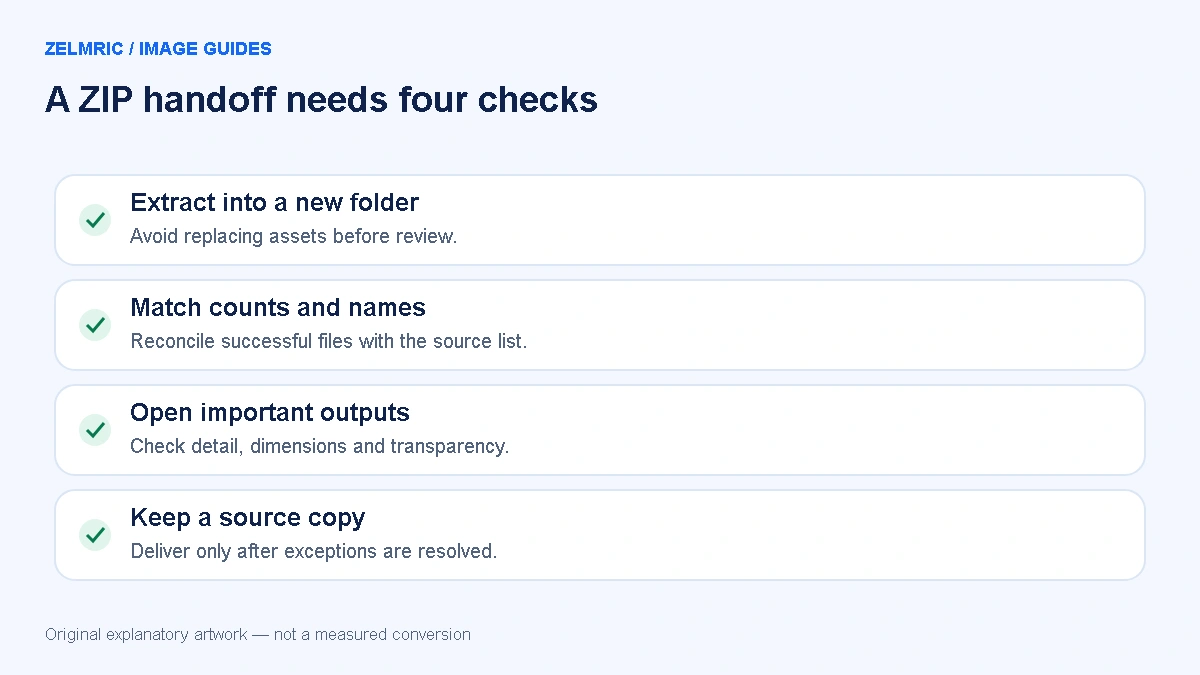
- Review errors and note which inputs have no successful output. ZIP download includes successful results, not a promise that every input succeeded.
- Download the ZIP to a known location and extract it into a new folder rather than over an existing asset directory.
- Match the extracted count and names against the successful items and your source checklist.
- Open important outputs to confirm appearance, dimensions and transparency. Test the intended upload destination when format acceptance matters.
- Keep the original files and the accepted delivery set separate until the handoff is approved.
The ZIP is a container for the converted files, not an additional image-quality setting. Zelmric’s ZIP writer stores entries without applying a further image conversion. Archive integrity checks can detect corruption, but they do not judge whether a logo looks right or whether the correct revision was selected.
Close the session only after the handoff is complete
Image processing is local; selected files and results are not uploaded for conversion. Initial application loading and update checks can still use the network. After the offline-ready message, the cached converter can work offline at its supported URL, but the offline cache does not hold your input images or downloadable results.
Save what you need before clearing the list, closing the tab or leaving the page. A finished batch is one whose expected files have been accounted for, whose exceptions have explicit decisions, and whose extracted outputs work at the destination. That definition is more useful than either a full progress bar or a ZIP filename on its own.
Run a manageable review batch
Keep a source checklist, resolve per-file exceptions and inspect the extracted archive before handoff.
Start a local batch