
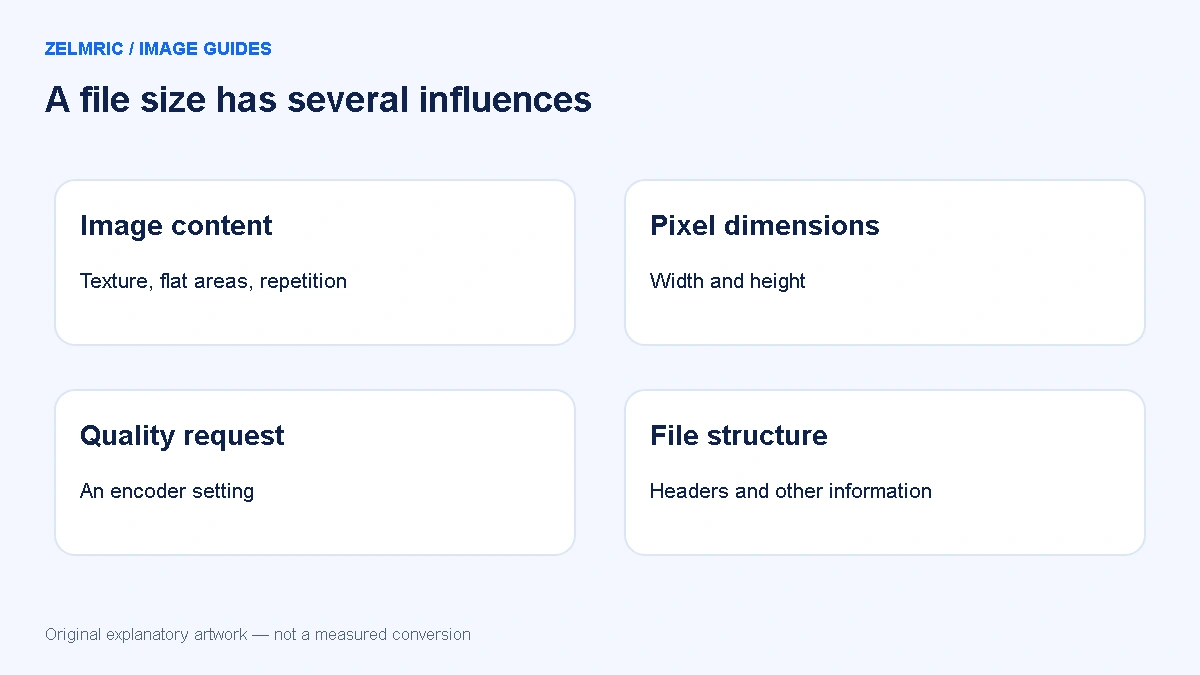
In a local Zelmric regression check, a 40 × 20 transparent PNG occupied 144 bytes. Its WebP export occupied 570 bytes at the default quality of 80 in Chrome 155. The output was correctly labelled 295.8% larger. Those are recorded development-fixture results, not an estimate of what an ordinary photograph will save.
The source was unusually simple: a black square on a transparent canvas. It is a useful counterexample to “WebP is always smaller,” but a poor benchmark for a photo collection. If you are investigating a WebP larger than PNG, the productive response is to understand the source and export conditions, not to assume that either format wins every time.
Read the comparison in the right direction
Calculate the change relative to the original: subtract the original byte count from the output, divide by the original, then multiply by 100. In the fixture, the increase was 426 bytes; 426 divided by 144 gives approximately 2.958, or 295.8%. A large percentage can therefore describe a small absolute number of bytes.
For a real decision, record both values. A tiny icon that grows by a few hundred bytes presents a different problem from a large photograph that grows substantially. Compare bytes with bytes, and distinguish KB from KiB when copying values from different applications. Zelmric labels the units in its result display.
Separate the format from a particular export
WebP supports different compression modes and a container that can carry image data and additional information. A specific output reflects the encoder’s choices and the decoded source, not simply the extension. Google’s compression overview describes the format’s modes; it does not promise that every conversion of every PNG will be smaller.
The output needs file structure as well as pixel data. For an extremely compact source, that overhead matters more relative to the whole file. However, you cannot identify the exact cause of growth merely by looking at two sizes. Do not attribute a precise number of bytes to a profile, header or alpha channel unless you have inspected the actual files.
Ask what the source already compresses well
Simple shapes, repeated colours and tiny dimensions may already make an efficient PNG. A photographic PNG represents a different case. Likewise, a JPEG may already be heavily compressed, so converting its decoded pixels at a high quality request can produce a larger delivery file without restoring detail that JPEG previously discarded.
Look at the source image before changing anything. Is it a photograph, a flat logo, a screenshot or a small utility asset? Does it contain transparency? Has it already been exported repeatedly? The answers help select the next experiment. They are more useful than comparing generic format averages with your individual result.
Check dimensions before blaming quality
Confirm that the source and result have the same intended dimensions. A size comparison is harder to interpret if one export has fewer pixels. In Zelmric, Keep original dimensions retains the decoded size; a width or height setting scales down proportionally and does not enlarge an image that is already smaller.
If the destination only displays a smaller image, reducing dimensions may be appropriate. That is a separate decision from format efficiency. Halving both dimensions leaves one quarter of the pixel count, but it does not guarantee a particular file-size reduction. Check readability and the final display requirement before discarding resolution.
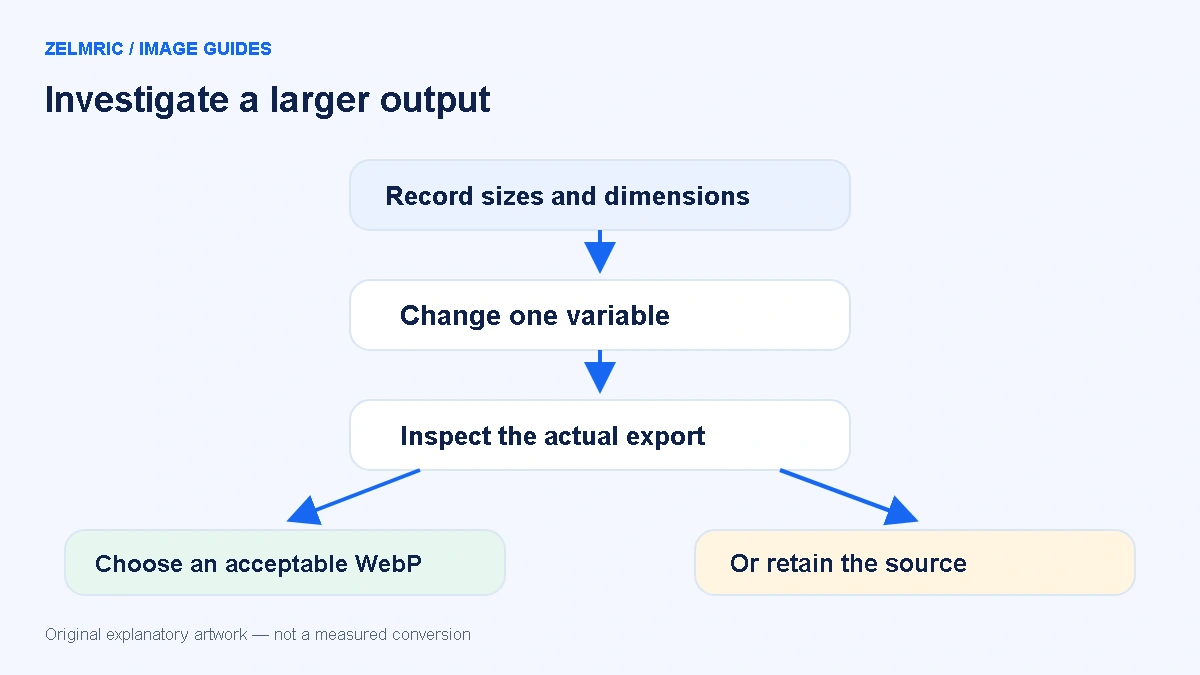
Run a diagnosis that can actually distinguish causes
- Preserve the original. Work from the same source on every trial and write down the original and output dimensions.
- Hold dimensions fixed. Lower quality for one trial and compare important detail with the initial export.
- Test an appropriate downscale separately. Keep the chosen quality steady so you can identify the effect of changing dimensions.
- Choose based on the destination. Use the acceptable file, or retain the source if conversion adds no useful benefit.
The visual quality checklist helps decide whether a smaller trial remains usable. A lower byte count is not enough if small lettering becomes unreadable. For a logo, the transparent-edge checks are just as important as the size label.
Keep the fixture in perspective
The development example was produced from a blank canvas 40 pixels wide and 20 pixels high, with a filled 20 × 20 black rectangle and transparent remaining area. A PNG export supplied the input. The converter then encoded WebP with original dimensions and default quality. That setup explains why it is reproducible as a small synthetic case.
Browser versions and encoding details can change exact byte counts. The observation establishes that a valid result can grow; it does not rank browsers, predict savings, or show that all transparent PNGs should remain PNG. The diagrams in this guide are explanatory artwork, not screenshots of additional compression measurements.
Recognise a valid but unsuitable result
The converter checks the output MIME type and RIFF/WEBP signature before making it downloadable. That protects against a browser returning the wrong format, but it does not prove the file is the best choice for your website. File validity, appearance, size and destination compatibility are separate checks.
When the browser cannot decode an input or a limit is exceeded, you should see an error rather than a valid larger result. Do not repeatedly retry a successful conversion in the hope that randomness will make it smaller. Change a relevant setting, investigate the source, or stop.
Keeping the original can be the correct outcome
A successful optimisation process does not require every file to finish as WebP. If the PNG already serves the destination efficiently, retaining it is a defensible decision. If the destination requires WebP, choose the smallest acceptable export after inspection and record the trade-off rather than presenting it as a saving.
For a group of files, use the batch review workflow to keep exceptions visible. Treat the size comparison as evidence for a decision, not as a score that has to turn positive.
Inspect your actual size change
Review each result against its own source and keep the format that fits the destination.
Compare source and WebP sizes