
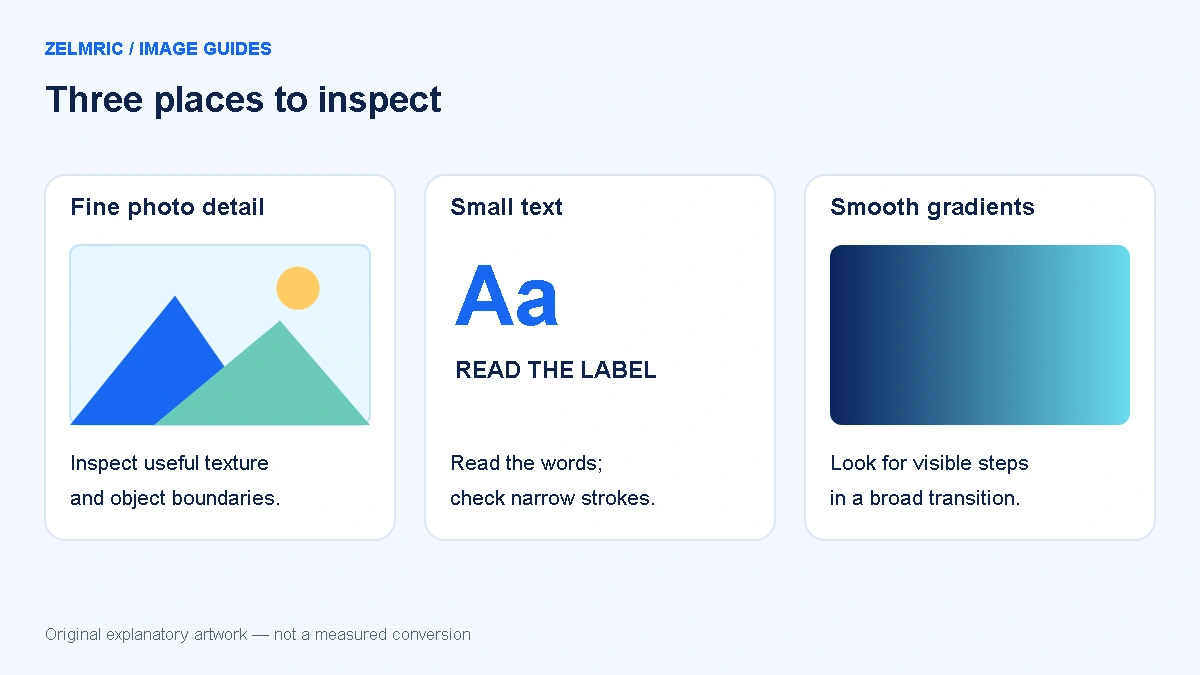
A photograph can look convincing from a distance while the lettering on a small label becomes difficult to read. A decorative background has a different job: nobody needs to read it, but an obvious band in a smooth colour transition may still be distracting. Before changing a slider, decide which part of this particular image must survive the conversion.
That is why there is no single best WebP quality setting for every source. The useful question is narrower: what is the least demanding setting that still meets this image’s purpose? The Zelmric WebP Converter starts at 80%, which is a convenient first trial, not a measured optimum or a promise of visually identical output.
Write an acceptance rule before comparing files
Give the image a one-sentence job description. A product photograph might need a connector and its printed rating to remain recognisable. A screenshot might need its smallest relevant text to stay readable. A background might need an uninterrupted gradient behind a heading. These are different acceptance rules even if the pictures have the same dimensions.
Keep the original open as a reference. If its text is already blurred or its highlights are clipped, conversion cannot supply the missing information. Distinguish a source limitation from a new export defect so you do not keep increasing quality in pursuit of detail that was never available.
Keep the comparison controlled
Compare exports made from the same original, with the same pixel dimensions and background. Changing width and quality together makes it hard to tell which change caused an improvement or a problem. First establish an acceptable size, then compare quality settings at that size, or deliberately hold size constant while testing quality.
Download a trial before starting another conversion if you want to keep both. Converting the list again replaces the working results with new ones. Save trial files in separate local folders or give them descriptive names after download. Do not feed an earlier lossy export back into the tool as though it were the original.
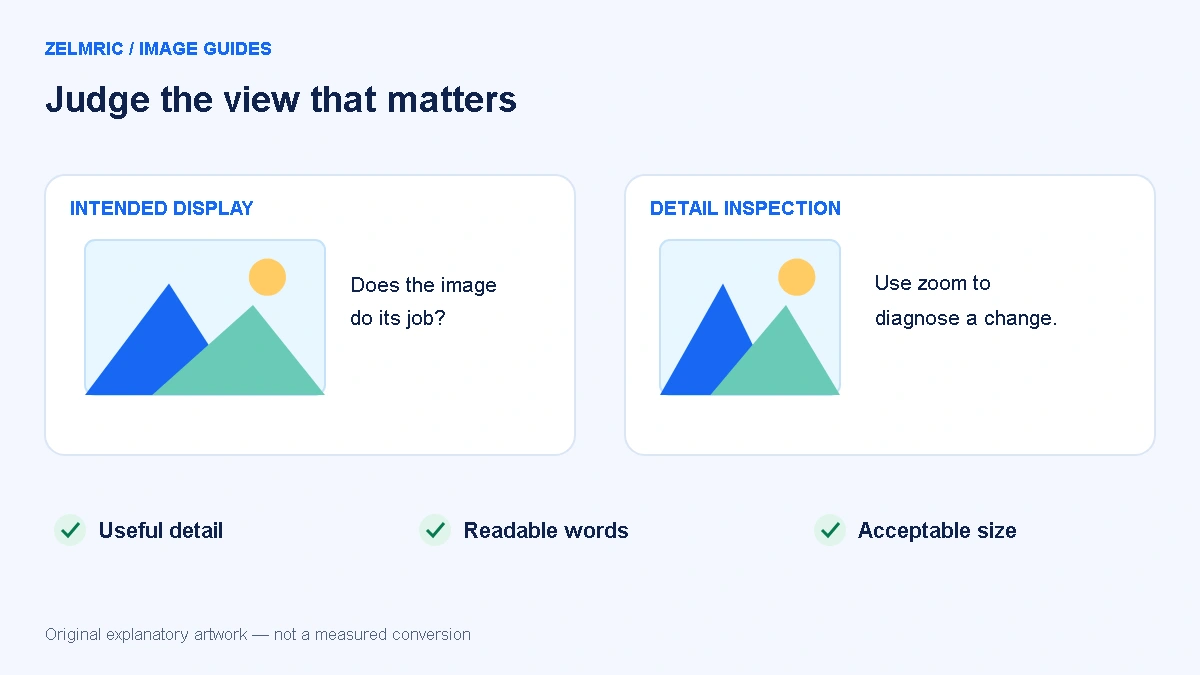
Use the same viewer and display scale for both files. A browser thumbnail, an editor at full pixel size and a page scaled to fit the screen are not equivalent comparisons. Check the dimensions reported by the file rather than assuming that two equally sized windows show equal image scales.
Inspect photographs for meaningful detail
Start at the size where the image will actually appear. Look at hair, foliage, fabric, fine patterns and the boundaries of important objects. Then enlarge a relevant crop to understand any change you noticed. Enlargement is a diagnostic aid; an extreme zoom can make an acceptable web image look unacceptable for a use it was never intended to serve.
Watch for softened detail, patches around high-contrast boundaries or texture that looks less natural than the source. Do not assume every changed pixel is a practical failure. Decide whether the change interferes with the image’s job and check the downloaded file, rather than relying on a small thumbnail alone.
Give text, edges and gradients their own checks
Read small text instead of merely noticing that text is present. Examine narrow strokes, coloured lettering and the space between characters. Flat interface graphics can reveal changes that are hard to spot in a photograph. If the words become ambiguous, either raise quality or reconsider whether a lossy delivery copy is appropriate.
For gradients, inspect a broad region rather than one pixel. Compare a smooth sky, shadow or background transition with the source. If you see steps or blotches, verify they were not already present. With transparent artwork, also inspect the edge on the backgrounds where it will appear; the PNG transparency guide explains that separate check.
Understand what the percentage does not promise
Zelmric passes an encoding-quality request to the browser. It does not expose a separate lossless mode, and quality 100 does not guarantee an exact pixel match. The same displayed percentage is also not a universal quality unit that can be compared directly across different encoders or applications.
The browser API permits a quality parameter for formats that support lossy encoding; its behaviour is not a substitute for checking the result. See MDN’s canvas export documentation for the API distinction. Avoid labelling a high-quality export “lossless” simply because it looks good on your screen.
Make a small, useful set of trials
- Export once at the default, with dimensions fixed.
- If the acceptance rule fails, raise quality and compare the important region again.
- If the image passes comfortably, try a lower setting and see whether the file-size reduction is worthwhile.
- Stop when the result meets the job without an unnecessary size penalty. Retain the original and the chosen delivery copy.
There is little value in producing dozens of almost indistinguishable trials. Record the source, output dimensions, chosen quality and the reason you accepted it. For mixed collections, this record becomes a useful starting point for the review-first batch workflow, while still allowing exceptions for demanding graphics.
Let the image, not a score, settle the decision
A smaller file that obscures essential information is not a successful delivery image. An enormous export with no useful visual improvement is not automatically better either. If a result grows, use the larger-output troubleshooting guide before assuming the converter failed.
Your final rule can be simple: the necessary detail is clear at the intended display size, transparent edges behave correctly where relevant, and the measured file size is acceptable for the destination. Apply that rule consistently, and let different images finish with different settings when their jobs demand it.
Try your own quality comparison
Use one original, hold dimensions steady and review the important detail before choosing a delivery copy.
Open quality controls