
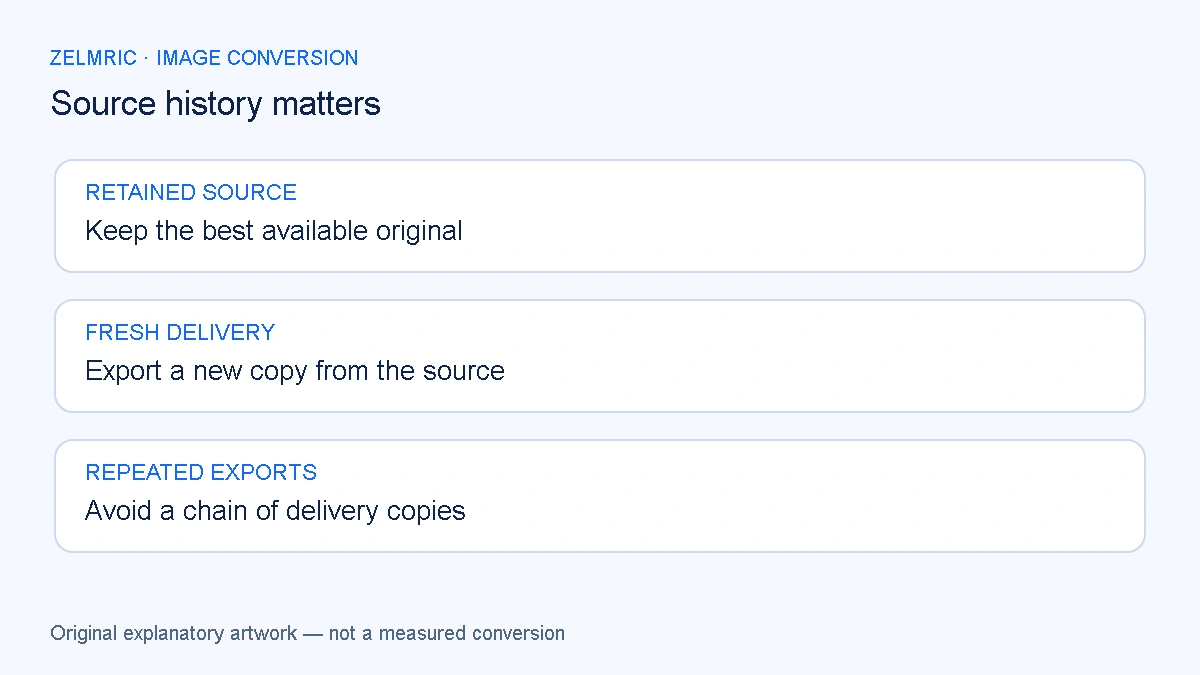
The photograph you receive may already be a copy of a copy. It could have been exported from an editor, downloaded from a messaging service and saved again before reaching your asset folder. A WebP conversion starts from the pixels the browser can decode now; it does not reach back through that history to the camera original.
That distinction changes the task. Instead of searching for a setting that reverses JPG to WebP quality loss, identify the best available source and create a deliberate delivery copy from it. The important work is preserving that source, limiting avoidable re-encoding and checking the details that make the photograph useful.
Trace the source before making another copy
Find out whether an editable master, original camera file or earlier high-resolution export is available. Use the version with the information you need, not simply the one with the largest filename or latest modification date. A larger file can still contain previously damaged or enlarged pixels.
If all you have is a JPEG, retain it unchanged. Make a working copy and note its pixel dimensions and intended use. JPG and JPEG are two common extensions for the same format family; changing between those names does not improve the image. Keep any existing delivery versions separate so a later revision does not accidentally start from the wrong generation.
Understand the decode–encode boundary
In the Zelmric WebP Converter, the browser decodes the source into an image representation, draws it onto a canvas and requests a new WebP encoding. Information already missing from the JPEG is not supplied by the quality slider. Existing blur, clipped highlights or compression artefacts can remain visible in a high-quality output.
A high quality request may reduce additional visible changes, but quality 100 is not a lossless mode in this application. Nor is the displayed percentage interchangeable with an export value in every other image editor. The canvas export API documentation describes an encoding-quality parameter, not a restoration control.
Separate a new loss from an old defect
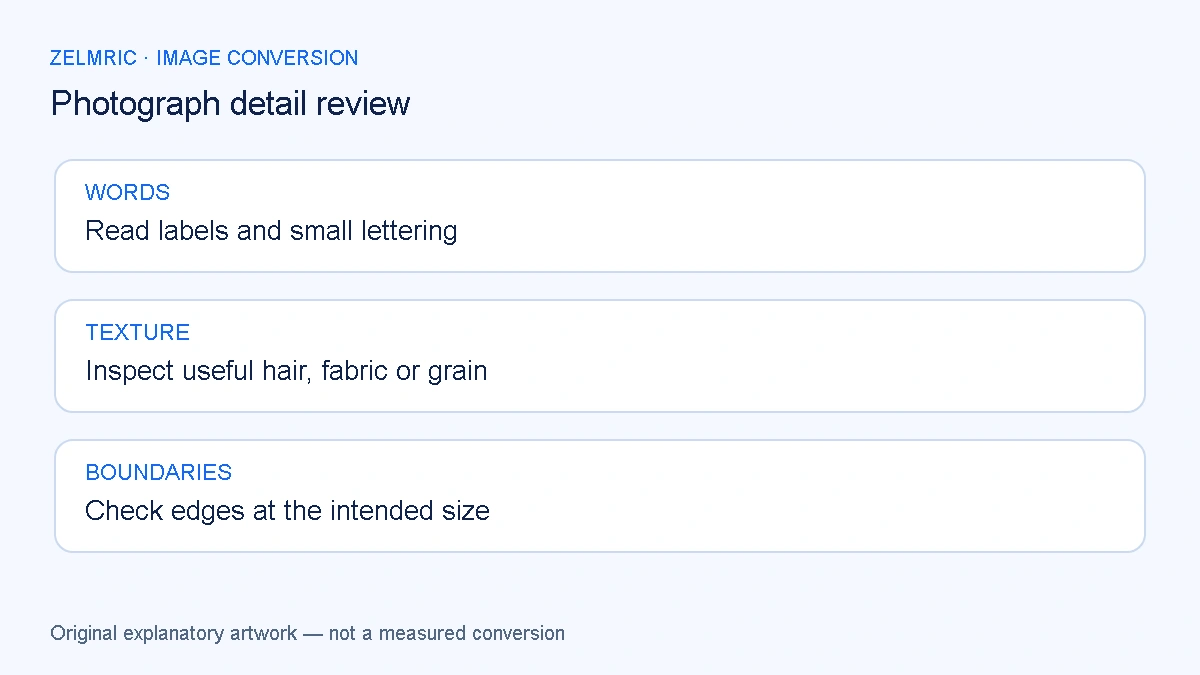
Open the retained JPEG and the downloaded WebP at matching dimensions and viewing scale. Choose a region with useful information: printed lettering, a connector, an animal’s fur or the outline of a small object. Compare that region directly rather than relying on your memory of the whole photograph.
If the same damaged edge or blocky patch exists in both files, do not attribute its presence solely to the new conversion. If a change appears only in the WebP, repeat from the retained source with a different quality request. Keep dimensions fixed for this comparison. The visual quality checklist helps define which changes matter for the destination.
Why repeated exports complicate a revision
Re-encoding an already lossy delivery file introduces another opportunity for change. Saving that result again can accumulate differences, although their visibility depends on content and encoding conditions. It is not sound to predict a fixed amount of damage per generation or say that a particular number of exports will always ruin a photograph.
The avoidable mistake is operational: someone edits the smallest delivery copy because it is convenient, then treats its next export as a new master. Keeping the original and recording which file was used for each export prevents that confusion. If a crop or retouch is needed, make it in an appropriate editor using the best source, then create the delivery version once.
Introduce resizing as a separate decision
A smaller image has fewer pixels available to describe fine detail. When quality and dimensions change together, you cannot cleanly attribute a softer result to either choice. Decide the required delivery dimensions, then compare exports at that size using the same source.
Zelmric preserves proportions when setting width or height and only scales down. It cannot enlarge a small JPEG to recreate detail. If dimensions are the main question, follow the resize planning guide before adjusting encoding quality. Do not discard a higher-resolution source just because the current page needs a smaller delivery file.
Account for appearance beyond sharpness
Check broad tonal transitions, skin or product colours where they matter, and any orientation that the receiving application must respect. A satisfactory thumbnail does not verify profile handling, metadata preservation or acceptance by another service. Open the actual downloaded file and test the place where it will be used.
Conversion can change or remove metadata and colour-profile information. Keep a source copy when camera details, editing history or an archival workflow matters. This browser converter does not promise exact colour-management equivalence across all devices. A visual check on one screen also cannot prove that every destination will render the file identically.
Use size as evidence, not a quality certificate
A WebP that is smaller may be an appropriate delivery copy, but byte count does not tell you whether essential lettering remains readable. A larger WebP is not automatically a broken file either. An already efficient JPEG can grow when exported with different settings without regaining any lost detail.
Read the measured size change in the results and consult why WebP can be larger when necessary. Avoid increasing quality simply to make the file size resemble an earlier original. Choose a result that meets the destination’s visible requirements and document any size trade-off.
A source-first revision habit
Before a later update, return to the retained source rather than the previous WebP. Check that it is the intended crop and revision, export a fresh delivery copy and inspect the same meaningful regions. If no better source exists, be explicit about that limitation instead of describing conversion as an upgrade to missing detail.
If lettering is already unreadable in the best available JPEG, a higher WebP quality setting will not make it legible. Look for an earlier export or return to the photograph’s author. When neither is available, decide whether the existing detail is sufficient for this use before making another delivery copy.
Make a fresh delivery copy
Compare the same crop and revision so an editing change is not mistaken for re-encoding damage.
Convert a source copy