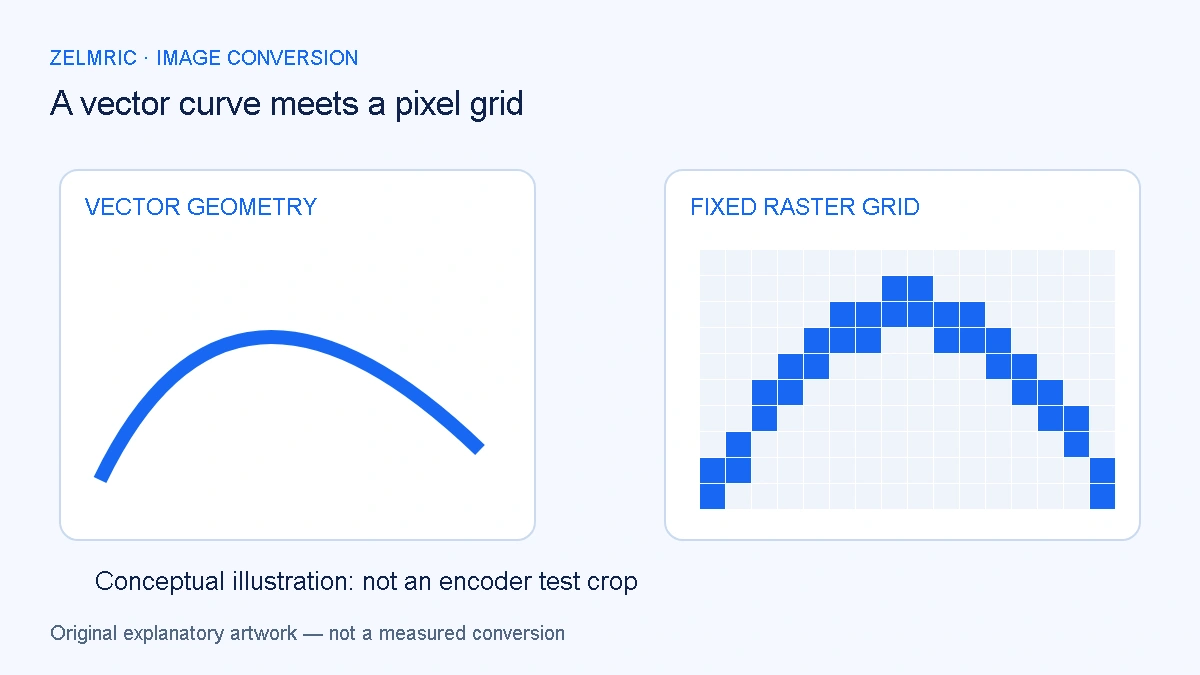
A logo can remain crisp when you zoom its SVG in an editor, then look soft when you enlarge a WebP made from it. The apparent contradiction disappears once you ask what the file contains. One describes shapes; the other records a fixed raster that must be stretched if you display it beyond its chosen size.
Solving an SVG-to-WebP blurry result therefore begins in the vector export, not with an assumption that the highest quality request will recreate missing pixels. Confirm the size the browser decoded, decide the size the destination needs and make sure the SVG is self-contained enough to be accepted safely.
Find the raster size that was actually produced
Read the dimensions in the conversion result and in the downloaded file. Compare them with the display requirement. An image exported at a small raster size may look adequate as an icon and inadequate when stretched into a large banner. The difference is a change of use, not necessarily a failed file.
SVG coordinate systems and output pixel dimensions are related but not identical. A viewBox describes a rectangle in the drawing’s user space; it does not by itself settle every embedding or decoding situation. MDN’s viewBox reference explains its role. Prefer an explicit, intentional export size over guessing what a browser will infer.
Prepare the vector for the intended destination
Keep the editable vector source and choose a suitable width and height in your graphics editor. Preserve the drawing’s proportions. For example, a drawing with a 2:1 composition can be rasterised to 800 × 400 or 400 × 200 without changing that ratio. Those are geometry examples, not quality-test results.
Check thin strokes, small gaps and the smallest lettering after export at the destination size. A detail that occupies less useful space in the pixel grid may cease to communicate clearly. Where text is unsupported by the converter, a graphics editor can turn suitable lettering into paths; confirm that this does not remove information your publishing workflow needs.
Use the browser converter within its limits
The WebP Converter creates a still raster output and its resize controls only scale down. A target width larger than the decoded input does not make the browser recreate a higher-resolution raster. If the source was decoded too small, return to the vector editor and prepare an appropriately sized source before converting.
There is also an input limit of 1 MiB for SVG, plus the decoded dimension and pixel limits. Asking for a small output does not guarantee that an oversized or very complex source will be accepted. For the proportional sizing calculation, use the dimension-planning guide.
Why a valid SVG can still be rejected
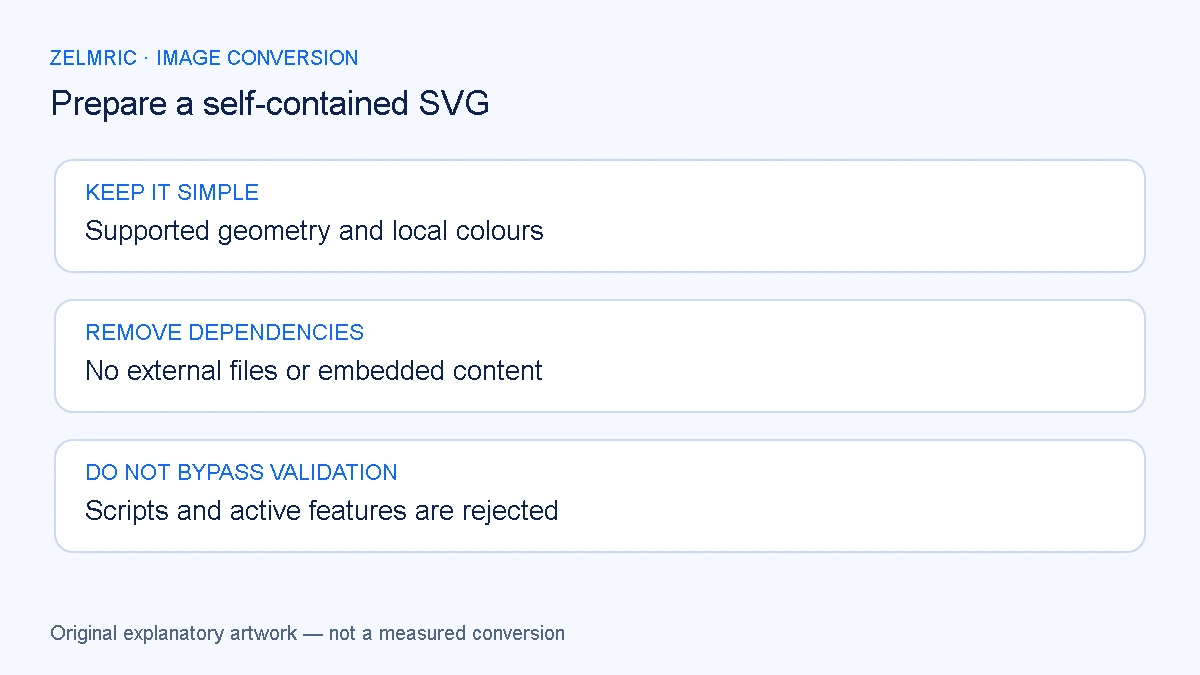
SVG can contain much more than basic paths and shapes. Zelmric deliberately accepts a restricted set rather than attempting to execute every feature a vector document might use. Scripts, event handlers, styles, embedded images, external references, document types, entities and processing instructions are rejected; a standard XML declaration is allowed.
That means validity as an SVG document is not the same as acceptance by this converter. A file using text elements or other unsupported features can fail even without an external URL. The safe remedy is to export a plain, self-contained version using supported geometry and attributes, then inspect that version in your editor before retrying.
Keep external dependencies out of the handoff
A file that relies on a linked stylesheet, remote image or font may render differently when moved away from its original project. Removing the link without recreating the intended appearance can also change the artwork. Resolve that dependency in the authoring tool rather than expecting a converter to fetch resources on your behalf.
Do not paste untrusted SVG into an active page or remove the validator as a workaround. The browser processing explanation separates local decoding from external requests. Keeping processing local does not make active document features necessary or safe to accept.
Inspect colour edges and alpha separately
Once the size is correct, compare the source rendering and exported WebP against the same background. Look at the contour, narrow spaces and partly transparent shadows. A halo inherited from the artwork or a change in colour detail is a different problem from simply producing too few pixels.
The transparent-edge inspection method also applies to rasterised vector artwork with alpha. Quality 100 is not a lossless switch here, and preserving transparency does not guarantee an exact colour or pixel match. Keep an original that allows you to produce another export when the destination changes.
Know when the vector should remain a vector
If the destination accepts a suitable SVG and needs the artwork at widely varying sizes, retaining a vector version may be preferable. A WebP can be useful when the destination requires a raster image, but changing format removes the editable shape description from that delivery copy. It does not replace the source document.
Likewise, this converter does not transfer SVG animation, interactive behaviour, text selection or document semantics into the WebP. If one of those is the actual requirement, choose a different delivery approach instead of repeatedly adjusting a still-image quality setting.
A better export is an authoring decision
For a blurry result, work backwards from the destination: confirm its size, compare the downloaded dimensions, inspect the intended raster and only then evaluate encoding changes. For a validation error, work forwards from the editor: create a plain export without unsupported dependencies and verify its appearance before retrying.
These are two distinct repairs. Neither requires weakening the safety boundary. A retained vector master and a deliberate raster size make future exports predictable without pretending a fixed pixel image has unlimited scalability.
Rasterise a safe export
Use a self-contained source with explicit dimensions and review its edges after conversion.
Convert a prepared SVG